My-Tiny.Net :: Networking with Virtual Machines
Testing the eMail service with SMTP and IMAP
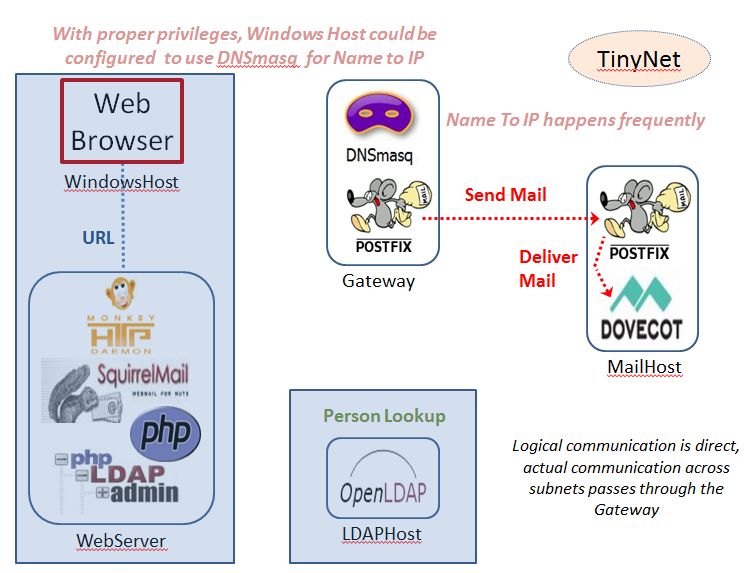
Previous Lab Exercises covered base configuration for our virtual machines and adding the necessary software. In this Lab Exercise we configure the Gateway and the MailServer to get the mail moving, and in upcoming Lab Exercises we will finish the configuration with the WebServer and the LDAPhost.
We use the same font conventions here:
This is a command you type in a virtual machine
This is a menu option you choose or a keyboard shortcut
This is used for emphasis - something to look for or remember
Menu Item::Page is short for "this Page under Menu Item on the Menu"
EXTREMELY IMPORTANT(are you tired of seeing this yet?)
- Make sure the VirtualBox DCHP is turned off for Host-Only network interfaces
- If your VM is not shut down properly it will become corrupted and you will have to recreate it.
Usepoweroffat the command prompt, or go the the VirtualBox menu at the top of the VM window and select Machine then ACPI Shutdown
NEVER close your VM by simply closing the window (except in an emergency).
- Always start the Gateway first, and wait until the Gateway has finished booting before starting the other VMs. The WebServer, MailHost, and LDAPhost can all boot at the same time.
The install scripts set up the system accounts, directories, permissions, and logfiles we need, so now it's time for testing.
We could try to jump right in and use WebMail for testing, but if something does not work it will be tough to figure out exactly where the problem is (postfix? dovecot? monkey? php? squirrelmail?).
Much better to test things one at a time, so we are sure one component is working properly before we add another one. Put another way, this strategy means we are always working with new problems, not problems that could have been solved earlier.
Our testing tool for postfix and dovecot will be the old reliable telnet. Now that xinetd will start every time the system boots up and manage our telnet connections, we can test the Postfix and Dovecot configurations by speaking their language.
Let's send some mail: First, use
netstat -tulp and netstat -tulpn
on both the Gateway and the MailHost to see the listening services.
Check for xinetd and postfix on the Gateway, and xinetd, postfix, and
dovecot on the MailHost. If these are not running, start them with the
appropriate commands in /etc/rc.d
Useful references:
http://www.thegeekstuff.com/2010/03/netstat-command-examples/
http://www.linuxhowtos.org/Network/netstat.htm
Our test strategy is to do one thing at a time, so we start by speaking SMTP with the MailHost to make sure the local delivery is working (Test 1), then make sure mail can be retrieved by speaking IMAP (Test 2). After that we will try the Gateway to make sure mail is forwarded and then delivered (Test 3).
Test 1: On the MailHost, enter these commands one by one at the command prompt, using zzz.xxx.ccc for the sending.host.name
How can you tell if this mail has been delivered? Check the log files. Note that there may be some delay, but not too much.telnet localhost 25
HELO sending.host.name
MAIL From: TheBoss@example.com
RCPT To: mailadmin@mailhost.tinynet.edu
DATA
Subject: System Upgrade
We are upgrading the system. Please send me your password.
.(yes, that's just a dot)
QUIT
- /var/log/maillog
- /var/log/dovecot.IMAP
- /var/log/dovecot.LDA
Try sending mail again, to a recipient like
helpdesk@net-a.tinynet.edu
and look at the logs to see how postfix changed the address. The key configuration file for postfix is /etc/postfix/main.cf (there
are versions here for both the gateway and the mailhost, the configuration
script copies and renames the proper one for the role). The name switching
magic is controlled by /etc/postfix/virtual_alias where standard
system users root postmaster abuse bounced helpdesk for all
subnets are aliased to a single name so all of this mail will conveniently
end up in one place.
|
Test 2: Make sure mail can be retrieved by speaking IMAP.
For this test we use telnet on the MailHost to act like a mail client. The dovecot imap service is listening on port 143. For clarity here, sample output is also shown.
IMAP commands always start with a unique token and replies to that command finish with the same token. Here, the token is a number, so be sure to enter the following commands with the number at the beginning of each line. Hint: it doesn't matter what the number is as long as it is unique for the session, so lazy sysadmins (you can be one) use 11, 12, 21, 22, 23, 32, 33, 34, 43, etc.telnet localhost 143
Trying 127.0.0.1...
Connected to localhost.
Escape character is '^]'.
* OK Dovecot ready.
Login with username and password. Note: the documentation is a little unclear - you may or may not need to use double quotes
"" around
the username and password.
The password is admin (but you knew that because you saw it in
/home/vmail/mail-pwd on the MailHost already) ...
Ask for a list of folders:11 login "mailadmin@mailhost.tinynet.edu" "admin"
11 OK Logged in.
Select your inbox, and Dovecot will give you all kinds of information about that folder:21 list "" "*"
* LIST (\HasNoChildren) "." "INBOX"
21 OK List completed.
EXISTS and RECENT refer to incoming messages. You can23 select "INBOX"
* FLAGS (\Answered \Flagged \Deleted \Seen \Draft)
* OK [PERMANENTFLAGS (\Answered \Flagged \Deleted \Seen \Draft \*)] Flags permitted.
* 1 EXISTS
* 0 RECENT
* OK [UIDVALIDITY 1180039205] UIDs valid
* OK [UIDNEXT 3] Predicted next UID
23 OK [READ-WRITE] Select completed.
FETCH message_number All to see just basic information on the email, or
FETCH message_number body[] to read the actual mail.
In the example below some actual data is replaced with where it came from during the SMTP exchange.
Looks fine, so disconnect from the server:32 FETCH 1 BODY[]
* 1 FETCH (BODY[] {bytes}
Return-Path: <SMTP MAIL From:>
X-Original-To: <SMTP RCPT to:>
Delivered-To: <aliased mailbox>
Received: from [SMTP HELO] ...
        by ... (Postfix) with ESMTP id ...
        for <SMTP RCPT to:>; {timestamp}
Message-Id: < ... >
Date: {timestamp}
From: <SMTP MAIL From:>
To: <SMTP RCPT to:>
Subject: System Upgrade

We are upgrading the system. Please send me your password.
)
32 OK Fetch completed.
Test 3: Check that mail from the Gateway is properly received and delivered by the MailHost.34 logout
* BYE Logging out
34 OK Logout completed.
Connection closed by foreign host.
Now repeat Test 1 at the command prompt on the Gateway, using gateway.tinynet.edu for the sending.host.name
Sending the message should create a record of activity in /var/log/maillog on the Gateway, and new data in the relevant log files on the MailHost.
Finally, repeat Test 2 at the command prompt on the MailHost, to check the new message and note the differences.